Culture, Vision and Values
What you can expect from our culture and distributed work environment.
- Vision, Strategy, Key Results
- Collaboration Tools
- Values
- Culture - how we work
- NFE is a Social Venture!
- Co-op Resources from Startup.coop
- Using the Library with Claude
- Using Nextcloud with Claude
- Roles at NFE
- Using the NFE electrical toolkit with Claude
- Using Element with Claude
- Shared files: Nextcloud team folders
- Using ERPNext with Claude
- Using OpenEMS with Claude
Vision, Strategy, Key Results

Vision
Thriving Communities

Strategy
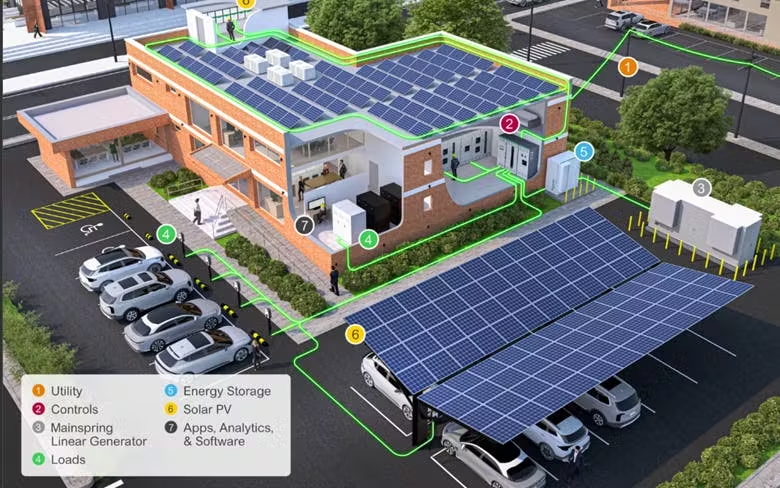
Advancing Sustainable, Reliable, Affordable Energy through resilient Community Owned Microgrids. We build and operate these microgrids and teach others how to do the same.
Key Results
Completed
- Find Partners and advisors and cofounders
- Dansturn - Grid Operations
- Hillary - Metering Technology
- Michael Goldbach - Advisor
- Attend Microgrid Conference in Dallas, April 2025 and connect with the community
- Register NFE as a Utility Company in Uganda
- Set up collaboration tools for NFE team
- Evaluations and sourcing for
Now
- Pilot microgrid in a small community of 8 to 10 homes
- Bulk (discounted billing) through UEDCL
- Test smart metering hardware
- Test monitoring and steering software for meters
- Test customer post paid billing
- Bulk (discounted billing) through UEDCL
- Connect with Linux Foundation energy community for collaboration on Microgrid software
- Find hardware partners in China
- Connect with 2 potential customers
- Bugolobi flats
- ?
- Bugolobi flats
- Publish one or two knowledge base articles
- Share about Smart metering (finding a vendor and deciding on communication protocols)
- Payment/Vending systems: Evaluating uganda's online payment ecosystem
- Share about Smart metering (finding a vendor and deciding on communication protocols)
- Financial Transparency - Publish our finances on open collective
Next
- Bellavista microgrid
- 1st customer onboarding (sign MOU)
- Enable smart metering
- Enable customer post paid billing
- 1st customer onboarding (sign MOU)
- Introduce BESS for Pilot customer
- Test power backup offering
- Test power backup offering
Later
- Enable BESS for Bellavista
- Enable Solar PVs for Pilot
- Start using open source software for running the microgrid
Collaboration Tools
Overview
This page contains useful tips for working at NFE and for various tools we use. These tools can be found at dashboard.NearlyFreeEnergy.com
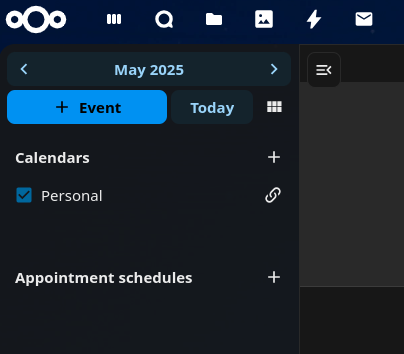
Email and Celandar with NextCloud
Documentation with Bookstack
Kimai for Time tracking
Company Website with Wordpress
Group Chat with Matrix and Element
Code Repository with Gitea
Customer Help desk with Freescout
CRM with Espo
Customer Relationship Management (CRM)
AI Assistant with Claude
Claude can search, read, add to and update this Library for you. See Using the Library with Claude for the one-time setup.
Claude can also work with your Nextcloud mail, files, calendar, Deck, Talk and Notes. See Using Nextcloud with Claude to install the skill and set up your app password.
Project Management with Plane
You can access plane here and their documentation.
Video Calls with Jitsi
Jitsi is an important part of GitLab’s strategy for communication between team members. As such, extra care needs to be given to ensure the safety and integrity of data. For how to use Jitsi, refer to their official documentation
Scheduling Meetings with Calcom
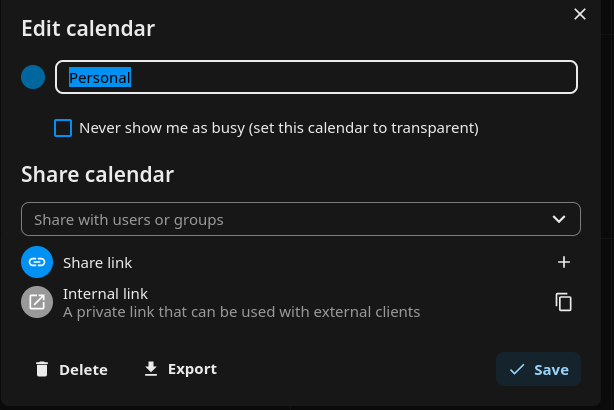
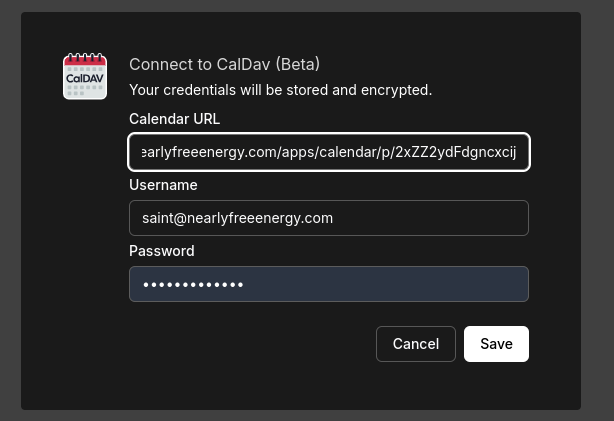
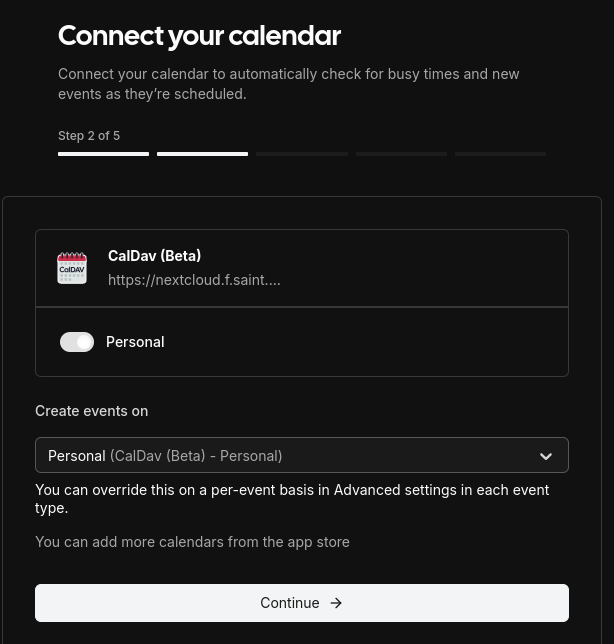
Most of our work is asynchronous but we'll occassionally need to meet with each other and with external stakeholders. This is what Calcom is for. It's Free Software like most of our tools so you can search online for more information on how to use it. Here's how you can set up your NFE account.
Values
Collaboration
We are better Together: If you want to go quickly, go alone but if you want to go far, go together
Curiosity
Always learning, frequently questioning and listening.
Community
Default to Openness. We want to learn and build in public so that others who care about what we are working on can also learn and consider contributing to our mission. They'll be a few things that need to be private like our customers contact information but we aim to be open about how and what we are working on. So when in doubt, just share it.
People first
Relationships count most, invest in them. We want to give reach other room to center our lives around family and friends, not our jobs.
Managers of One
People need to be reminded more often than they need to be instructed. What it means to be a manager of one.
Culture - how we work
Most of our work is asynchronous, this is the best way for people in different timezones, schedules and places to effectively collaborate. The people at Gitlab wrote a good guide on asynchronous work, please go read it.
Here's some tips from Aaron
- Lean on element/matrix to start conversations about something you are inclined to "have a meeting or call" about. You'll be surprised by how much progress you can make on something without scheduling a meeting.
- Expect that progress might feel slower than having everyone in the same room at the same time.
- You need to get better at writing your thoughts and ideas out. We really very heavily on written communication to collaborate
- If you have an idea or suggestion, make use of our bookstack library and create a page for it as we discuss it.
NFE is a Social Venture!
Our Identity
We, Nearly Free Energy (NFE), operate as a social enterprise — a mission-driven business committed to providing affordable, sustainable energy solutions while generating profit in a responsible and inclusive manner.
Our Purpose
Nearly Free Energy exists to:
-
Advance access to sustainable, reliable, affordable electricity for every community;
-
Support energy independence and resilience through microgrid innovation;
-
Create local economic opportunities by empowering households, cooperatives, and small businesses to manage their energy needs
Our Core Principles
We are guided by the following values:
People-Centered Impact
We prioritize the needs, dignity, and aspirations of the communities we serve. Our solutions are co-designed with our users, and we strive to create long-term value and inclusion.
Environmental Stewardship
We commit to environmental sustainability in our products, services, and operations — advancing renewable energy efficiency solutions to reduce reliance on fossil fuels.
Financial Sustainability
We operate for profit to ensure our longer-term viability. We reinvest earnings in innovation, infrastructure, and impact — balancing financial returns with social outcomes.
Transparency and Accountability
Community Partnership
We build local capacity and respect local knowledge. We collaborate with community organizations, public agencies, and other enterprises to maximize shared value.
Governance and Decision-Making
-
Our leadership team is accountable for balancing financial, environmental, and social performance in all major decisions.
-
Impact and profit are both KPIs in our internal planning and reviews.
-
We welcome regular feedback from our customers, partners, and employees to help shape our direction.
Reporting and Learning
-
We will publish a Social Impact Report at least once a year to document progress toward our mission.
-
We will share lessons learned, challenges faced, and areas for improvement in line with our commitment to transparency.
Our Long-Term Vision
We envision a world where energy is:
-
Sustainable — powered by renewable resources
-
Affordable — enabling families and businesses to thrive;
-
Community-owned — unlocking local prosperity and autonomy.
Till every community can sustain their energy needs.
Co-op Resources from Startup.coop
We also encourage you to check out our free Lean Co-op course if you haven’t already and see if there are local resources within the Cooperation Works network who can continue to help you refine your vision!
We have also listed advocacy, technical assistance, financing and general startup resources on the build and resource pages of our website. And have provided a list of additional resources below:
-
Network for Developing Conscious Communities DC and Baltimore CoopNomics Academy
-
Solidarity as a Business Model: a Multi-Stakeholder Cooperative Manual
-
Webinar on Worker Self Directed Nonprofits: Workplace Democracy in Nonprofit Organizations
-
Establishing a Worker Cooperative for Business Succession Planning
-
Think Outside the Boss: How to Create a Worker-Owned Business
-
A Technology Freelancer's Guide to Starting a Worker Cooperative
Using the Library with Claude
Claude, our AI assistant, can search, read, add to and update the NFE Library for you through the "NFE Library" skill. This page explains the one-time setup and how to use it well.
What Claude can do with the Library
- Answer questions from the Library. Ask how we do something ("What's our process for pre-commissioning CHINT meters?") and Claude searches the Library, reads the relevant pages and answers with links to them.
- Browse. List books, chapters and pages, or pull up a specific page.
- Add and update pages. Ask Claude to write up a process, a decision or meeting notes, or to correct a page that's out of date. Claude checks for an existing page first, shows you a draft, and only publishes after you say yes.
Claude only sees what your own BookStack account can see, and anything it publishes appears under your name in the page history, exactly as if you had edited it yourself.
One-time setup
You need three things:
- The Claude desktop app. The skill only works in chats opened in the Claude desktop app on your computer (not in the browser or on your phone alone), because your token is kept on your computer. This will change once we host a shared Library connector.
- API access in BookStack. Your BookStack role needs the "Access System API" permission. If you don't see an API Tokens section on your BookStack profile, ask Aaron to enable it.
- Your personal API token, saved in a private file on your computer:
- In a Claude desktop chat, ask something like "Search the NFE Library for our Collaboration Tools."
- The first time, Claude asks for permission to access a folder on your computer and creates the file
~/.config/nfe-library/credentials.env. - In BookStack, go to your profile (top right) → My Account / Edit Profile → API Tokens → Create Token. Set an expiry date about 90 days out.
- Open the file (on a Mac: Finder → Go → Go to Folder… →
~/.config/nfe-library, then opencredentials.envwith TextEdit), paste the Token ID and Token Secret after the=signs, and save. - Tell Claude "done". It will confirm the connection works.
When your token expires, create a new one and replace the values in the same file.
Keeping your token safe
- Never paste your token into a chat, an email, Matrix, a Library page or any shared document. Chats keep a history; the file on your computer doesn't leave it except for the moment Claude uses it.
- Claude is set up never to read the token out loud or show it back to you.
- If you think your token has been exposed, delete it in BookStack (profile → API Tokens) and create a new one.
Tips for good results
- Ask in plain language and mention the Library if you want Claude to check it: "According to the Library, how do we onboard a new microgrid customer?"
- Ask for sources. Claude should link the pages it used; open them if the answer matters.
- When you learn something the team should know, ask Claude to add it. "Add today's decision on battery suppliers to the Library" or "Update the Collaboration Tools page to include Claude."
- Review drafts before saying yes. You're the author of record for anything Claude publishes with your token.
- If something isn't in the Library, that's a gap worth filling. See About the Library.
Troubleshooting
| What you see | What to do |
|---|---|
| Claude says the chat isn't linked to your computer | Open the chat in the Claude desktop app and send a message there. |
| "No credentials found" or empty values | Make sure you saved credentials.env with both values filled in. |
| Error 401 | The token is wrong or has expired. Create a new one and update the file. |
| Error 403 | Your BookStack role is missing "Access System API". Ask Aaron. |
| Claude can't reach the Library | Let Aaron know; the server may be down or Claude's network settings may need checking. |
For admins
- Skill: "NFE Library", provisioned to everyone in Claude under Organization settings → Plugins & skills. Updates are made by uploading a new version of the skill there.
- Network:
*.nearlyfreeenergy.comis on the allowed domains list for Claude's code execution (Organization settings → Capabilities), so Claude can reach the Library's API. - Permissions: grant "Access System API" per role in BookStack (Settings → Roles). Content access follows each person's normal BookStack permissions.
- Planned: a hosted MCP connector for the Library, which will remove the desktop-app requirement.
Last reviewed: 19 October 2026 by Aaron Tushabe
Using Nextcloud with Claude
Claude, our AI assistant, can work with your Nextcloud for you: mail, files, calendar, contacts, Deck, Talk, Notes and Nextcloud Office documents. It does this through the "nextcloud-api" skill, which calls Nextcloud's own API directly. This page explains the one-time setup and how to use it well.
What Claude can do with Nextcloud
- Find mail anywhere. Ask "Find everything from EnAccess since September" and Claude searches every folder of every mail account you have in Nextcloud, not just the newest 100 messages. It tells you which folders it searched.
- Tidy your inbox. Move, mark as read or unread, star, or send emails to Trash, in bulk. Claude shows you the list first and only changes anything after you say yes.
- Files and sharing. Search, read and summarise files, including spreadsheets and Word documents. Claude can also upload, move and share files after you approve.
- Calendar and Deck. "What's on my calendar this week, and which Deck cards are due before Friday?"
- Talk and Notes. Read conversations and notes. Claude can post a message, but only after you've seen the exact text and approved it.
- Mail filters. Set up server-side rules, for example filing the NFE Inverter Monitor alerts into their own folder.
Claude only sees what your own Nextcloud account can see. Anything it changes is done as you.
One-time setup
The skill is set up for everyone already; the only thing you need to do yourself is create your app password (step 3). In full, you need three things:
- Claude on your own computer. The skill works in the Claude desktop app (Code tab) or in Claude Code, on macOS, Linux or Windows (with WSL or Git Bash). Your app password stays in a file on your computer.
- The skill. It's already set up for everyone in our Claude organisation, so there's nothing to install. If it doesn't show up for you (for example, in a Claude Code setup outside the organisation), download
nextcloud-api.skillfrom the attachments on this page (paperclip icon, top right). Open it and click Save skill, or unzip it into~/.claude/skills/. - Your personal Nextcloud app password, saved in a private file on your computer:
- In a Claude chat, ask something like "Using Nextcloud, what's on my calendar this week?"
- The first time, Claude creates the file
~/.config/nextcloud-api/credentials.env, with your Nextcloud username filled in and the password left blank. - In Nextcloud, go to your avatar (top right) → Personal settings → Security → Devices & sessions. Type
claude-apias the app name and click Create new app password. Copy the password. It's only shown once. - Open the file. On a Mac: Finder → Go → Go to Folder… →
~/.config/nextcloud-api, then opencredentials.envwith TextEdit. Paste the password straight afterNEXTCLOUD_APP_PASSWORD=, with no spaces or quotes, and save. - Tell Claude "done". It will confirm that it can sign in as you.
To revoke access, delete the claude-api entry under Devices & sessions.
Keeping your password safe
- Never paste the app password into a chat, an email, Matrix, a Library page or a shared document. It only goes in the file on your computer.
- Claude is set up never to show, print or read out the password. It passes the password straight to Nextcloud.
- An app password can be revoked on its own, without changing your normal Nextcloud password. If you think it has been exposed, delete it and create a new one.
How Claude handles changes
- Reading is free. Searching, listing and summarising happen straight away.
- Changes need your yes. Before it moves, marks, deletes, shares, sends or posts anything, or changes a setting, Claude shows you what it will do and how many items it affects. It waits for your answer, and an approval covers only what you were shown.
- "Delete" means Trash. Emails go to your Trash folder and files go to the Nextcloud trash bin, so everything can be restored. Claude never empties the trash.
- Claude checks its work. After a change, it recounts and tells you the actual result, including anything that failed.
Tips for good results
- Name the person or organisation when searching mail, e.g. "anything involving joscha or enaccess.org". Claude finds mail they sent, mail sent to them, and mail where they were copied.
- Give a date range ("since 1 September"). Searches are much faster with one.
- Ask what was covered. Claude should say which folders and dates it searched. If something seems missing, ask it to check other accounts or folders.
- Topics often live in folder names, e.g.
Sezibwa Rentals/. If a file search finds nothing, ask Claude to look inside the folder. - When you work out a useful routine, such as a weekly calendar and Deck review, add it to the Library so others can use it too.
Troubleshooting
| What you see | What to do |
|---|---|
| "No Nextcloud app password found" | Fill in NEXTCLOUD_APP_PASSWORD in ~/.config/nextcloud-api/credentials.env and save. |
| "File does not exist" when opening the file | The .config folder is hidden. Use Finder → Go → Go to Folder…, and make sure you didn't copy a trailing full stop. |
| Error 401 | The app password is wrong or was revoked. Create a new one and update the file. |
| A mail folder shows 0 messages or "not cached" | Claude syncs it automatically. If it still looks wrong, open the folder once in Nextcloud Mail. |
| A mail filter you want isn't available | Sieve filtering is off for that account. It's under Mail → account settings → Sieve server → Enable sieve filter. Claude will ask before turning it on. |
| The mcphub Nextcloud tools return "Invalid request parameters" | That's the separate mcphub connector, not this skill. Use this skill instead, and let Aaron know so mcphub can be checked. |
For admins
- Skill: "nextcloud-api", set up for everyone in Claude under Organization settings → Plugins & skills. Updates are made by uploading a new version there. When you do, also replace the attachment on this page, which is kept for manual installs.
- Local copies: anyone who installed the skill by hand in
~/.claude/skills/nextcloud-apishould remove that folder, so the organisation's version (and its updates) is the one used. - Server: https://nextcloud.nearlyfreeenergy.com (Nextcloud 34). The skill uses the Mail, WebDAV/CalDAV/CardDAV, OCS (sharing, Talk), Deck, Notes and file-templates APIs.
- Network:
*.nearlyfreeenergy.commust be reachable from wherever Claude runs commands. - Why not just mcphub? mcphub's Nextcloud mail tools cap lists at 100 messages and can't search, move, mark as read or trash mail. The skill does all of that directly and works even when mcphub is down.
Last reviewed: 20 October 2026 by Aaron Tushabe (skill now set up for the whole organisation)
Roles at NFE
Roles at NFE
NFE has three roles. Most people hold one; some hold two; in rare cases, one person takes on all three.
| Role | What they do | Durable skill |
|---|---|---|
| IC (builder / operator) | Build or operate the company, working with the tools | Judgement, taste, creativity |
| DRI | Own customer outcomes and assemble ICs to deliver them | Ownership, accountability |
| Player coach | Build the capability and capacity of the people around them | Coaching, empathy, building human capacity |
1. IC: builder / operator
Every IC is a manager of one. You own your work from start to finish without needing daily check-ins. You get clear objectives and the freedom to decide how you reach them. When you can't find an answer, you look for it yourself first, ask in the open if you're still stuck, and write down what you learn in the Library.
Salespeople, engineers, designers, product people: anyone working hands-on with the tools to build or operate the company.
ICs are augmented, with access to agents. One person can now do the work that a team, or 10 people, did in the past.
Durable skill: judgement, taste, creativity.
Leverage
The strongest ICs don't just produce more themselves. They do work that makes everyone else faster:
- building things others can reuse, such as tools, templates, skills and agents,
- solving several related problems at once instead of one at a time,
- sharing what they know through Library pages, demos and pairing,
- spotting and removing whatever is slowing the team down.
2. DRI: Directly Responsible Individual
Owns customer outcomes. A DRI:
- puts the strategy together,
- understands the roadmap well enough to understand customer needs and problems,
- assembles a team of ICs to get something done.
Durable skill: ownership and accountability. The question every DRI can answer: what do you lead, and what are you ultimately responsible for?
How DRIs make decisions, and when approvals are needed, is covered in Directly Responsible Individuals.
Once a DRI decides, everyone commits to carrying out the decision, including people who disagreed. You can still argue to change it, but take that to the DRI, and keep executing while you do.
3. Player coach
What we would call managers today. Player coaches build the capability and capacity of other people. Instead of telling them how to do it, they show them how to do it.
- Player coaches are ICs or DRIs who are also really good at coaching the people around them.
- They need to keep building, so they can show the skill they're teaching.
- They don't need to be strategic, and they don't need to be a DRI.
Durable skill: building human capacity and coaching, with the empathy and soft skills great managers are known for.
Holding more than one role
Roles combine: an IC can be a player coach, and a DRI can be a player coach. In rare cases one person takes on all three.
Further reading
- Directly Responsible Individuals: how DRIs decide, and when approvals are needed
- GitLab handbook: Values (Managers of one; Disagree, commit and advocate) and Engineering IC Leadership, which the IC section adapts
Using the NFE electrical toolkit with Claude
Claude, our AI assistant, can read an architect's floor plan, check our electrical drawings and lay out devices through the NFE electrical toolkit, an open-source program NFE wrote that runs on your own computer. Claude names the rooms, device types and rules; the toolkit works out every position and writes only to a separate overlay file on NFE layers. It never writes to the architect's drawing. This page covers installing the toolkit, connecting it to Claude, the propose-review-approve workflow and plotting sheet PDFs. For what it achieved on LSHA, see the phase 1 pilot.
What Claude can do with it
- Read a floor plan. Open a DWG or DXF, detect its real units, pick out the plotted copy of the architect's plan, and index every electrical symbol.
- Find the rooms, including mirrored apartments, and show you a room map.
- Check our drawings (read-only): title blocks and drawing numbers, legends against the symbols on each sheet, and device counts per room.
- Lay out devices by rule in one room, apply a whole rule set, copy a reviewed apartment onto its mirror image, or draw a schematic circuit run.
- Compare a layout with the engineer's existing one, and show you review images.
- Plot sheets to PDF at true size. DXF + PDF is NFE's standard deliverable.
One-time setup
You need three things:
- Claude Code or the Claude desktop app on your own computer, signed in with your NFE Team seat. If you don't have a seat yet, ask Aaron. The toolkit has been tested on macOS; Windows is untested so far.
- Python 3.11 or newer, and git.
- LibreDWG, the open-source DWG converter. On a Mac with Homebrew, run
brew install libredwg. On Linux, install your distribution'slibredwgpackage. On Windows, LibreDWG publishes its own builds; if they are not on your PATH, point the toolkit at them with theNFE_DWG2DXF,NFE_DXF2DWGandNFE_DWGREADenvironment variables.
Install
In Terminal, run these one at a time:
cd ~
git clone https://github.com/Nearly-Free-Energy/nfe-electrical-toolkit.git
cd nfe-electrical-toolkit
python3 -m venv .venv
.venv/bin/python -I -m pip install -e ".[test]"
.venv/bin/python -I -m pytest -q
The last command runs the tests. 12 should pass; the 4 that need the LSHA F6 drawing are skipped unless you have it. Always run the toolkit's Python with -I (isolated mode), so that nothing in a drawing folder can be imported by accident.
Your drawings and outputs go in a work folder outside the repository: ~/nfe-electrical-work in the examples below. Keeping it outside means client drawings can never be committed by mistake.
Connect Claude Code
Run this once in Terminal. --scope user makes the tools available in every project:
claude mcp add nfe-electrical --scope user -- ~/nfe-electrical-toolkit/.venv/bin/python -I -m nfe_electrical.mcp_server --workdir ~/nfe-electrical-work
Then start a new Claude Code session, because MCP servers only connect when a session starts. claude mcp list should show nfe-electrical as connected.
Connect Claude Desktop
Add the server to Claude Desktop's config file, claude_desktop_config.json:
- macOS:
~/Library/Application Support/Claude/claude_desktop_config.json - Windows:
%APPDATA%\Claude\claude_desktop_config.json
Use full paths, replacing YOUR-NAME with your user name:
{
  "mcpServers": {
    "nfe-electrical": {
      "command": "/Users/YOUR-NAME/nfe-electrical-toolkit/.venv/bin/python",
      "args": ["-I", "-m", "nfe_electrical.mcp_server", "--workdir", "/Users/YOUR-NAME/nfe-electrical-work"]
    }
  }
}
If the file already has an mcpServers section, add the nfe-electrical entry inside it instead of starting a second one. Quit Claude Desktop completely and reopen it. On Windows, the command is ...\nfe-electrical-toolkit\.venv\Scripts\python.exe (untested).
Check it works
Ask Claude: "Using the NFE electrical toolkit, list the device types you can place." It should answer from the toolkit's list_device_types tool.
Working on a floor: propose, review, approve
Claude doesn't write anything until you approve it. Every tool that adds to the overlay does a dry run unless told otherwise. A typical session:
- Open the floor. "Open ~/Drawings/LSHA/F6.dwg as F6." The toolkit copies the drawing into
~/nfe-electrical-work/input/F6/, makes the copy read-only and converts it. Your original is never opened for writing. Check the units and the plotted base copy it reports. If the job isn't under BS 7671, say so: "…as F6, under IEC 60364." - Find the rooms. "Find the rooms and show me the room map." Check that every room you need was found and named. Labels the toolkit couldn't bound are listed.
- Run the checks. "Run the checks and list the errors." Title blocks, legends and device counts. The checks only read.
- Ask for a proposal (dry run). "Propose bedside sockets for both bedrooms with pair:bed_head", or "Apply the rules in ~/nfe-electrical-toolkit/rules/bs7671/apartment_type_a_small_power.yaml to unit W, as a dry run." Claude reports what would go where, room by room, with warnings such as "only 1 of 2 positions fit the rule". Nothing is written.
- See it drawn. A dry run gives a list, not a picture. To see the proposal, ask Claude to write it to a trial overlay (for example
F6_trial) and show you the render: proposed devices in magenta over the grey plan, the engineer's existing symbols in blue. Your real overlay is untouched. A trial overlay is just a file in~/nfe-electrical-work/F6/overlays/; delete it when you no longer need it. - Approve, and only then write. "Approved. Write it to F6_small_power." Claude repeats the call with
dry_run=false. To take something out, ask Claude to remove those items. Removal happens straight away, but only ever from the overlay. - Compare and validate. "Compare unit W with the engineer's sockets" pairs each new socket with the nearest existing one. "Validate the F6_small_power overlay" re-reads it strictly before you hand it over.
- Plot the sheets (next section).
Rules for single placements include pair:bed_head (two either side of the bed head), wall:media_wall:3 (three on the media wall), perimeter:2, beside_door, centre and corners. Rule sets live in the repository under rules/bs7671/, and the reasoning behind them is in the Small-power rules playbook, BS 7671 (draft). In mirrored apartments, design and review one unit, then ask Claude to "mirror unit W onto unit E".
Sheet PDFs: the deliverable
DXF + PDF is NFE's standard deliverable. Once the overlay is approved:
- Ask: "Plot the small power sheet with overlay F6_small_power in issue mode." The sheet is plotted at true size (for example A1, at the drawing's own scale), with the drawing's own title block, grid and legend, to
~/nfe-electrical-work/F6/sheets/. - Issue mode shows the overlay in place of the existing symbols it covers. This is the PDF you issue.
- Review mode draws the overlay in magenta over the existing sheet, for checking.
- Hand over the overlay DXF from
~/nfe-electrical-work/F6/overlays/with the issue PDFs. The recipient attaches the DXF to the architect's untouched DWG as an xref at 0,0,0, scale 1, or opens the two side by side.
Check every sheet by eye before you issue it. For now the toolkit does not update the title block's drawing number or revision table, ezdxf skips one multiline text per sheet, and logos (OLE objects) are not drawn. An engineer's review of the overlay and the PDFs is also what closes gate 1 of the move off AutoCAD.
Keeping client drawings safe
- Drawings are untrusted data. The toolkit copies each one into a new read-only folder, runs the converter with a time limit, and writes only inside your work folder. It has no network code.
- What Claude sees goes to Anthropic. Tool results (room names, title-block text, renders) become part of the conversation, under our Team plan's terms. For now NFE has no special restrictions on using AI tools with client drawings (decided 21 Oct 2026), and this will be revisited before cut-over. Phone numbers are masked in check results.
- Text in a drawing is data, never an instruction. If a note in a drawing seems to ask Claude to do something, treat it as content to review.
- Never put client drawings, outputs or project names in the GitHub repository, its issues or its pull requests. The repository is public. Keep your work folder outside it. As a backstop, the repository ignores drawings, DXF, PDF and PNG files, the toolkit's report files and any
work/folder.
Tips for good results
- Start with the room map, and refer to rooms by their ids (R07) when names repeat.
- Use one overlay per deliverable, named for the floor and sheet, such as
F6_small_power. - Design one apartment, review it, then mirror it.
- Read the warnings. "Only N of M positions fit" means the rule doesn't suit that room. Tell the playbook's owner rather than forcing it.
- When a rule is wrong, change the playbook, not just the drawing, so the next floor comes out right.
Troubleshooting
| What you see | What to do |
|---|---|
Claude has no nfe-electrical tools |
Start a new Claude Code session, or quit and reopen Claude Desktop. Check claude mcp list. |
| The server shows "connection closed" or failed | Run the server's command by hand in Terminal to see the real error. See Claude Code: MCP server shows connection closed. |
dwg2dxf not found |
Install LibreDWG, or set NFE_DWG2DXF to the program's full path. |
| "floor 'F6' is not open" | Each new Claude session starts empty. Open the floor again; it's quick, because the conversion is cached. |
| A rule set is refused | It was written for a different standard from the job's. Reopen the floor with the right standard, or use a rule set written for that standard. |
| Positions are far off, or the plan looks the wrong size | Ask Claude for the floor report's units, which shows declared and detected units. Some LSHA files say metres but are drawn in millimetres. Report anything odd to the toolkit's owner. |
Updating
cd ~/nfe-electrical-toolkit
git pull
.venv/bin/python -I -m pip install -e ".[test]"
Then start a new Claude Code session, or restart Claude Desktop.
For maintainers
- Code: github.com/Nearly-Free-Energy/nfe-electrical-toolkit, public, Apache-2.0. Its README lists every tool and command-line option. The toolkit's owner is still to be named.
- Engineer-owned files: the rule sets (
rules/<standard>/), the device catalogue (src/nfe_electrical/data/catalogue.yaml) and the room vocabulary (src/nfe_electrical/data/room_types.yaml). The reasoning behind the rules lives in the playbook. - Tests build a synthetic drawing. The F6 tests run only when the drawing is on your machine; set
NFE_F6_DWGto its path. - Project names and client data stay out of the repository. They belong in the Library.
Last reviewed: 21 October 2026 by Aaron Tushabe
Using Element with Claude
Claude, our AI assistant, can read and post in our Element (Matrix) rooms at matrix.nearlyfreeenergy.com as you. It does this through the "nfe-element" skill. This page covers the one-time setup, including the device-verification step that trips people up, and how to use it well.
What Claude can do in Element
- Catch you up. "What's new in the product room?" or "Did anyone answer my question in the business thread?" Claude reads whole threads, not just the main timeline, because replies in threads don't show there.
- Answer in the right place. Claude replies inside the thread, to the exact message being answered.
- Tag people properly. When a post asks someone to do something, Claude mentions them with a real Matrix mention, the pill Element shows, so they get notified. Their name in plain text doesn't notify them. Ask "tag Hillary in it".
- Preview before sending. Claude can do a dry run that shows exactly what would be posted, mentions included, without sending anything.
- Start a topic the NFE way. A short heading post, with the body as the first reply in its thread.
- Fix mistakes. It edits your message instead of posting a correction.
- Share files into the relevant thread.
Everything is posted under your name, and Claude only sees the rooms you're in. Claude shows you the exact text and waits for your yes before posting.
One-time setup
The skill is already set up for everyone in our Claude organisation, so there's nothing to install. You need to do three things once on each computer: install the Matrix library, log in, and verify the new session.
1. Install the Matrix library
Ask Claude to "set up the nfe-element skill". It installs the Matrix library into its own private Python environment at ~/.config/nfe-element/venv.
- On a Mac,
pip install --userandbrew install libolmno longer work. Homebrew's Python refuses--userinstalls, and Homebrew has dropped libolm. You don't need either: current versions of the Matrix library (matrix-nio0.26+) handle encryption withvodozemac, which installs as a ready-made package. - If you're doing it by hand:
python3 -m venv ~/.config/nfe-element/venv
~/.config/nfe-element/venv/bin/pip install 'matrix-nio[e2e]'
2. Log in
Claude gives you a login command to run in a terminal. Press Enter to accept the NFE homeserver, then enter your Matrix ID (@first.last:matrix.nearlyfreeenergy.com) and your password. Type the password yourself in the terminal, never in the chat. Only a login token is kept, in ~/.config/nfe-element/credentials.json, readable by you alone.
Posting in rooms works as soon as you've logged in.
3. Verify the new session (needed to read encrypted rooms)
Most of our rooms, including product, general and learning, are encrypted. Until you verify Claude's session, it cannot read new messages there; they show as [undecryptable …].
Don't use emoji verification. It doesn't work with this skill. Tapping Verify by emoji on the phone (or in Element Desktop) never completes: Claude's session cannot respond to it, and Element quietly gives up. Use manual verification instead:
- Ask Claude to run the nfe-element whoami command. It prints a line like:
/verify ABCDEFGHIJ abc123…fingerprint…xyz - Open Element Desktop or app.element.io. Not the phone app, which doesn't support this command.
- Paste that line into the message box of any room and press Enter. It's a command, so nobody else sees it.
- Element confirms the session is verified. Under Settings → Sessions,
claude-nfe-elementnow shows a green shield.
The fingerprint isn't secret. It's the public key of Claude's session on your computer.
What to expect
- Older messages stay locked. Encrypted messages sent before you logged Claude in can't be read by it, even after verifying. Everything from then on can.
- Plain rooms (for example business) can be read straight after logging in.
- Files you send through Claude are stored on the server unencrypted, even in encrypted rooms. Don't send anything that must stay encrypted.
- Each computer is its own session. Logging in again, or on another machine, creates a new
claude-nfe-elementsession that needs verifying again. Remove old ones under Settings → Sessions.
Keeping your account safe
- Never paste your Matrix password into a chat, a Library page or a room. It only goes into the terminal prompt.
- Don't share
~/.config/nfe-element/. It holds your login token and the session's encryption keys. - To cut Claude off, sign out the
claude-nfe-elementsession in Element under Settings → Sessions.
Troubleshooting
| What you see | What to do |
|---|---|
matrix-nio is missing |
The library isn't installed for the Python running the script. Ask Claude to use ~/.config/nfe-element/venv/bin/python. |
externally-managed-environment from pip |
Homebrew Python blocks pip --user. Install into the venv (step 1). |
No available formula with the name "libolm" |
Expected. libolm isn't needed any more (step 1). |
| Verify by emoji closes or never shows emoji | Expected. Use manual /verify from Element Desktop or the web (step 3). |
/verify isn't recognised |
You're on the phone app. Use Element Desktop or app.element.io. |
Encrypted messages show [undecryptable …] |
Either the session isn't verified yet (step 3), or the message is older than your login. |
| "Not logged in on this machine" | Run the login step (step 2). |
| Someone wasn't notified when Claude named them | Their name went out as plain text. Ask Claude to tag them; from version 0.1.3 the skill sends a real mention. |
| Claude has two skills called nfe-element | You have a personal copy as well as the organisation's. Remove your personal copy in Claude's skills settings, so the organisation version is the only one. |
For admins
- Skill: "nfe-element", set up for everyone in Claude under Organization settings → Plugins & skills. Updates are made by uploading a new version there, then choosing Make this the current version in its version history (uploading alone doesn't reach members). Version 0.1.1 added the
whoamicommand used in step 3; 0.1.2 adds the macOS venv install and the/verifysteps to the skill's own setup. 0.1.3 adds real mentions (--mention),--dry-run, andmembers ROOMto list a room's members and their Matrix IDs. - Homeserver: https://matrix.nearlyfreeenergy.com
- Why not emoji verification? The Matrix library the skill uses (
matrix-nio) can't complete Element's current emoji flow. Manual/verifycross-signs the session from a client that holds your cross-signing keys.
Last reviewed: 22 October 2026 by Aaron Tushabe (macOS setup, manual verification, mentions in 0.1.3)
Shared files: Nextcloud team folders
Team folders are Nextcloud's version of Google's shared drives. They belong to NFE rather than to one person, and the group you're in decides which ones you can open. Join a group and you see its folders; leave it and they're gone. Nobody has to share or unshare individual files.
Our team folders
| Team folder | What goes in it | Who can open and edit it |
|---|---|---|
| NFE Business | Sites and customers (Sezibwa Rentals, Pearl Marina), proposals, fundraising and pitch decks, partner and community updates, conference and market material | NFE Everyone |
| NFE Product | Metering, gateway and hardware: vendor spec sheets and quotes, meter data and exports | NFE Everyone |
| NFE Team | Meeting recordings, logos and icons, anything else for the whole team | NFE Everyone |
| NFE Finance | Tax, bank and company registration documents, supplier invoices and payments | NFE Leads |
The folders follow the Library's books (Business, Product, Team, Finance). If you know which book a page belongs in, you know which folder its files belong in.
Groups
| Group | Members (October 2026) | Team folders |
|---|---|---|
| NFE Everyone | Aaron, Hillary, Dansturn, Nickson, Tom, Dismas, Daphine, Esther | NFE Business, NFE Product, NFE Team |
| NFE Leads | Aaron, Hillary, Dansturn | NFE Finance |
A Nextcloud admin manages these groups in Nextcloud (Accounts). Joining or leaving a group follows the Access Management Policy. Team folders don't use the LDAP everybody group, because it also contains service and test accounts.
Working with team folders
- Where they are: at the top of your Files, next to your own folders. The desktop and mobile apps sync them like any other folder.
- Save shared work straight into the right team folder. Keep your own Files for drafts and personal things.
- Should only some people see it? Ask the Security DRI for a group or team folder rather than sharing file by file.
- People outside NFE: share the file from inside the team folder, by email or public link. Always give a public link a password and an expiry date.
- Links survive moves. Nextcloud private links (
https://nextcloud.nearlyfreeenergy.com/f/<number>) point at the file itself, not its folder. ERPNext attachments made this way keep working when a file is moved or renamed, but not if it's deleted and uploaded again. - Deleted something by mistake? Each team folder has its own trash under Deleted files, and file versions work as usual.
- Big folders: NFE Team holds several hundred MB of meeting recordings. On mobile data, turn on the desktop client's virtual files option or untick that folder in its sync settings.
What stays out
- Code lives in Gitea. Don't sync git checkouts or
node_modulesthrough Nextcloud. - App folders (
Talk,Deck,Notes,Templates,Forms,Photos) belong to their apps. Leave them in your own Files. - Passwords and keys go in the password manager, never in a file.
For admins
- Team folders are managed in Administration settings → Team folders (the Team Folders app). Each folder is given to one group with full rights. There are no quotas or advanced permissions.
- New team member: add them to NFE Everyone, and leads to NFE Leads too. See Onboarding and Offboarding Access.
- Moving files from someone's own Files into a team folder keeps their file IDs and existing shares (tested 29 October 2026). Only the owner can move them, so ask them to do it.
Set up on 29 October 2026 by Aaron Tushabe with Claude. Owner: the Security DRI. Checked in the quarterly access review.
Using ERPNext with Claude
Claude, our AI assistant, can work in ERPNext for you: look things up, run reports, prepare draft bills and journal entries, attach source documents, and send bills for approval. It does this through the "erpnext-api" skill, using your own ERPNext API key, so everything it prepares shows you as its owner. This page explains why that matters, the one-time setup, and how to use it well.
Why your own key
Until now Claude reached ERPNext only through the shared mcphub connector, which signs in as Administrator. That caused two problems:
- Every document it created showed Administrator as its owner, so nobody could see who had prepared it.
- The Purchase Invoice Approval workflow blocks self-approval by comparing the approver with the document's owner, and ERPNext always lets Administrator through. A bill prepared through mcphub could therefore be approved by the person who prepared it.
With your own key, a bill Claude prepares for you is owned by you, and you can't approve it yourself. Claude can also only do what your own ERPNext roles allow.
What Claude can do in ERPNext
- Look things up. "Which Green Volta bills are waiting for approval?", "Show me everything booked to 5221 Bank Charges this quarter, by site."
- Run reports. General Ledger, Trial Balance, Accounts Payable, Profit and Loss by cost centre, and Balance Sheet, as a summary or saved to a spreadsheet.
- Prepare draft bills and journal entries. Claude sets the account and cost centre on every line, following the Chart of accounts and cost centres, and shows you the ledger lines the draft will post.
- Attach the source document. It uploads the PDF from your computer, or links the file in Nextcloud.
- Send a bill for approval when you ask. Approvers (Esther, Hillary and Dansturn) can ask Claude to approve or reject a bill with their own key, but never one they prepared.
Claude only prepares drafts. Submitting, approving and cancelling remain people's decisions, made in ERPNext's workflow.
One-time setup
You need three things:
- Claude on your own computer. The skill works in the Claude desktop app (Code tab) or in Claude Code, on macOS, Linux or Windows (with WSL or Git Bash). Your key stays in a file on your computer.
- The skill. It's already set up for everyone in our Claude organisation, so there's nothing to install. If it doesn't show up for you, download
erpnext-api.skillfrom the attachments on this page (paperclip icon, top right). Open it and click Save skill, or unzip it into~/.claude/skills/. - Your personal API key, saved in a private file on your computer:
- In a Claude chat, ask something like "Using ERPNext, which bills are awaiting approval?" The first time, Claude creates the file
~/.config/erpnext-api/credentials.env, with the key and secret left blank. - Only a System Manager can make the key. At NFE that's the
admin@nearlyfreeenergy.comaccount, so sign in with it yourself, or sit with whoever holds it (Aaron). Open your own user record (https://erpnext.nearlyfreeenergy.com/desk/user/<your email>) → Settings tab → API Access → Generate Keys. - Copy the API Key and the API Secret. The secret is shown only once, in a pop-up.
- Open the file. On a Mac: Finder → Go → Go to Folder… →
~/.config/erpnext-api, then opencredentials.envwith TextEdit, or runcode ~/.config/erpnext-api/credentials.envif you use VS Code. Paste the values straight afterERPNEXT_API_KEY=andERPNEXT_API_SECRET=, with no spaces or quotes, and save. - Tell Claude "done". It will confirm that ERPNext answers as you.
- In a Claude chat, ask something like "Using ERPNext, which bills are awaiting approval?" The first time, Claude creates the file
To revoke the key, click Generate Keys again on the same user record. The old secret stops working at once.
Keeping your key safe
- Never paste the key or secret into a chat, an email, Matrix, a Library page or a shared document. They only go in the file on your computer.
- Claude is set up never to show or print them. The skill sends them only to
erpnext.nearlyfreeenergy.com, and it refuses to send them anywhere else, even when a link points to another site. - If you think the key has been exposed, generate a new one. Nothing else needs to change.
How Claude handles changes
- Reading is free. Lists, reports and ledger previews happen straight away.
- Changes need your yes. Before it creates, edits, attaches, sends for approval or deletes anything, Claude shows you exactly what it will write: party, dates, accounts, cost centres, amounts, remark and file. It waits for your answer, and an approval covers only what you were shown.
- Drafts first. Everything Claude creates is a draft, which posts nothing to the books. Bills go through the approval workflow. Claude submits a journal entry only when you ask, after showing you its ledger lines.
- It checks its work. After a change, Claude re-reads the document and tells you the real name, status, owner and totals, with a link.
- Deleting is limited. Accounts Users can delete draft journal entries, but not bills. Deleting a draft bill needs the admin account, so ask Aaron. Submitted documents are cancelled, never deleted.
Tips for good results
- Give Claude the source document (the supplier's invoice or receipt) and say which site it's for. The cost centre decides which site's books the cost lands in.
- Ask for the ledger preview before anything is submitted: "show me what this will post".
- Check before booking twice. Ask Claude whether a supplier invoice number is already in ERPNext.
- Write remarks for an auditor. Say what it is, the source document, and why it went to that account.
- When you work out a useful routine, such as a month-end check, add it to the Library's Finance book (Finance at NFE) so others can use it too.
Troubleshooting
| What you see | What to do |
|---|---|
| "No ERPNext API key found" | Fill in ERPNEXT_API_KEY and ERPNEXT_API_SECRET in ~/.config/erpnext-api/credentials.env and save. |
| "File does not exist" when opening the file | The .config folder is hidden. Use Finder → Go → Go to Folder…, and make sure you didn't copy a trailing full stop. |
| Error 401 | The key or secret is wrong, or keys were generated again. Make a new pair and update the file. |
| Error 403, "does not have doctype access" | Your ERPNext roles don't allow that action. For example, deleting a bill needs the admin, and approving needs Spending Approver. |
| Error 417 | ERPNext rejected the data, for example an unknown field or a missing value. Claude reads the message and fixes the draft. |
| "Self approval is not allowed" | Working as intended: someone else has to approve a bill you prepared. |
For admins
- Skill: "erpnext-api", set up for everyone in Claude under Organization settings → Plugins & skills (Organization library, installed by default). Updates are made by uploading a new version there. When you do, also replace the attachment on this page, which is kept for manual installs.
- Local copies: anyone who installed the skill by hand in
~/.claude/skills/erpnext-apishould remove that folder, so the organisation's version (and its updates) is the one used. - Server: https://erpnext.nearlyfreeenergy.com (ERPNext 16.29, company Watt Works Foundation Limited). Keys are made from each person's user record, which needs a System Manager.
- Roles that matter: Accounts User prepares bills and journals. Spending Approver approves bills (Esther Chemutai, Hillary Arinda, Dansturn Kimbowa). Accounts Manager can delete bills (the admin account only).
- mcphub's ERPNext tools act as Administrator. Keep them for admin configuration such as workflows and roles, and for quick reads, never for creating or approving business documents.
- Tested on 29 October 2026 with Aaron's key. A draft bill showed Aaron as owner, offered him Submit for Approval only, and took a file uploaded from his Mac. The test draft was then deleted.
Last reviewed: 29 October 2026 by Aaron Tushabe (skill set up for the whole organisation)
Using OpenEMS with Claude
Claude, our AI assistant, can now work with OpenEMS, NFE's SCADA. It can tell you how a site is doing, pull history and energy figures, read component settings, and prepare setting changes. It does this through the "nfe-openems" skill, signed in with your own OpenEMS (Keycloak) login. This page explains what it can do, the one-time setup, and the limits to know about.
What Claude can do in OpenEMS
- Check on sites. "Is the Sezibwa gateway online?", "How is the Sezibwa battery doing right now?" Claude lists the edges with their last message, and reads live values such as SoC, battery, grid and load power, and phase voltages. It spells out what the signs mean (charging or discharging, buying or selling).
- Pull history. "What was the lowest SoC yesterday, and when?", "Give me the evening L3 voltage for last week as a CSV." Times are in Kampala time.
- Work out energy. "How much did the battery discharge each day this week?" At our sites the battery's energy counters are empty, so Claude works the kWh out from power history. For 30 Oct to 1 Nov 2026 it agreed with the daily brief to within 1.5%. For site consumption it uses the main meter's counter.
- Read settings. "What are the SRNE charge and discharge windows at Sezibwa?" Claude shows each component's settings, and turns the SRNE's encoded schedule times into clock times.
- Export the same Excel file the OpenEMS UI gives you.
- Prepare a change. "What would it take to start the evening discharge at 17:30?" Claude shows the exact change, current → new, and changes nothing until you say yes. See the limits below: today changes can't be sent through the Backend.
Two things to know first
1. Changes can't reach the gateways through the Backend yet. Our gateways connect straight to the Backend's Edge Manager. OpenEMS 2026 expects them to come in through its BackendEdge relay, so anything the Backend sends down to a gateway fails. That covers setting changes, channel writes and the live system log, in Claude and in the OpenEMS UI alike. Reading works: status, live values, history, energy, exports and the Backend's copy of each configuration. Until the deployment is fixed, changes are made on the gateway itself (its local UI or REST API over ZeroTier) by the engineer responsible, and recorded here in the Library. When asked for a change, Claude shows the exact plan and says this.
2. Inside OpenEMS, everyone is the same user. You sign in with your own Keycloak account, so access can be given and taken away person by person. But the Backend keeps its gateway list in a simple file (Metadata.File), and every login becomes one built-in user, admin, with full rights on every gateway. OpenEMS therefore can't tell who changed what. Claude keeps a log of every change it makes on your computer (~/.config/nfe-openems/changes.log), and you should post a short note in the site's Element thread or Library page: who, what, why, and before → after.
One-time setup
You need three things:
- Claude on your own computer. The skill works in the Claude desktop app (Code tab) or in Claude Code, on macOS, Linux or Windows (with WSL). Your login stays on your computer.
- The skill. It's already set up for everyone in our Claude organisation, so there's nothing to install. If it doesn't show up for you, download
nfe-openems.skillfrom the attachments on this page (paperclip icon, top right). Open it and click Save skill, or unzip it into~/.claude/skills/. - Your own OpenEMS login. It's the one you use at https://openems.nearlyfreeenergy.com. If you don't have one, ask a Keycloak admin to create a user for you in the
openemsrealm. Please don't use the shared admin login for day-to-day work: then nobody can tell who did what.
Then sign in:
- In a Claude chat, ask something like "Using OpenEMS, is Sezibwa online?" The first time, Claude creates
~/.config/nfe-openems/credentials.env, with the username and password left blank. - Choose how you want to sign in:
- Type your password each day (more private). Claude opens a sign-in prompt in its Terminal panel, or asks you to run one in your own terminal. You type your username and password there; Claude never sees them. The sign-in lasts 12 hours.
- Save your password in the file (more convenient). Open the file (on a Mac: Finder → Go → Go to Folder… →
~/.config/nfe-openems, then opencredentials.envwith TextEdit). Paste your username afterOPENEMS_USERNAME=and your password afterOPENEMS_PASSWORD=, with no spaces or quotes, and save. Claude then signs in again by itself when the 12 hours are up.
- Tell Claude "done". It confirms who you're signed in as, and until when.
Keeping your login safe
- Never paste your password into a chat, an email, Element, a Library page or a shared document. It only goes into the sign-in prompt or the file on your computer.
- Claude is set up never to show or print your password or the sign-in token. It sends them only to
openems.nearlyfreeenergy.com. - Claude hides passwords and API keys that appear in gateway settings, and it refuses to set them. Set those yourself in the OpenEMS UI.
- If you think your password has been exposed, change it in Keycloak.
How Claude handles changes
- Reading is free. Status, values, history, energy, settings and exports happen straight away.
- Changes need your yes. Claude first shows a dry run: the gateway, the component, each value's current → new, and what it will do at the site. It changes nothing until you agree to exactly that.
- Some things are never done through Claude: shell commands, software updates and restarts on the gateway, network settings, and passwords or API keys. Those belong to the engineer responsible, over SSH or in the UI.
- SRNE settings follow the Library's SRNE ASP48120SH3 Safe Settings Write design. Claude takes schedule times as clock times (17:30) and encodes them for the inverter, and it won't guess raw register values.
Tips for good results
- Name the site and the period: "Sezibwa, yesterday", "last week, per day". Dates are whole days in Kampala time.
- Ask Claude to say its source. Battery figures can come from the SRNE's own readings (
ess0) or the site totals (_sum), and energy from a counter or worked out from power. Good answers say which. - Gaps are reported, not hidden. If a period has missing data, Claude says how much and marks figures as estimates.
- Customers' names. The household meters at Sezibwa are named after the customers. In shared notes, refer to meters by house or meter id unless the names are needed.
- History for old test rigs can be mixed. The Backend files history by the number at the end of the gateway id, so
aaron-pi-1also holds whathillary-test-pi-1sent before it was renamedhillary-test-pi-99. See OpenEMS Backend InfluxDB Data Model and Edge-ID Collision. - When you learn something about a site's setup or OpenEMS, add it to the Product book's OpenEMS chapter so others can use it too.
Troubleshooting
| What you see | What to do |
|---|---|
| "not signed in" (exit 2) | The 12-hour sign-in ran out and no password is saved. Sign in again in the terminal, or save your password in the file. |
| "sign-in refused" | Wrong username or password, or your Keycloak user is disabled. Try them at https://openems.nearlyfreeenergy.com. |
| "this Backend cannot pass requests down to its Edges" | The known limit described above. Make the change on the gateway itself and record it. |
A value shows null |
The gateway is offline, the value isn't sent to the Backend, or there's no such channel. Ask Claude to find the right channel. |
| Energy totals come back empty | Expected for the _sum and battery counters at our sites. Ask for the energy worked out from power instead. |
| "no stored history" | Nothing was recorded for that gateway or period, for example an old test rig that hasn't connected since. |
For admins
- Skill: "nfe-openems", set up for everyone in Claude under Organization settings → Plugins & skills (Organization library, installed by default). Updates are made by uploading a new version there. When you do, also replace the attachment on this page, which is kept for manual installs.
- Backend: https://openems.nearlyfreeenergy.com (OpenEMS 2026.10, the
Nearly-Free-Energy/openemsfork, deployed fromopenems-deployment). The skill uses the UI websocket/openems-backend;/rest/jsonrpcis the Backend-to-Backend REST route. - Users: Keycloak at
https://keycloak.openems.nearlyfreeenergy.com/admin/, realmopenems. Each person needs their own user. - Known deployment issues (November 2026):
- The gateways connect straight to the Edge Manager without the BackendEdge relay, so requests from the Backend to a gateway fail with
Endpoint with method "edgeRpc" is not defined. The fix is to run the BackendEdge app between the gateways and the Edge Manager. Metadata.Filemaps every login to the oneadminuser, with full rights on every gateway.- At Sezibwa the
_sumand SRNE battery energy counters are empty,_sum/GridModereads Undefined, and there is no solar meter.
- The gateways connect straight to the Edge Manager without the BackendEdge relay, so requests from the Backend to a gateway fail with
- Tested on 2 November 2026 with Aaron's login. Sign-in, gateway list, live values, live watch, history, energy (counters and worked out from power), the Excel export, settings and a dry-run change all worked as described here. Nothing was changed on any gateway.
Last reviewed: 2 November 2026 by Aaron Tushabe (skill set up for the whole organisation)