# Collaboration Tools
### Overview
This page contains useful tips for working at NFE and for various tools we use. These tools can be found at dashboard.NearlyFreeEnergy.com
#### Email and Celandar with NextCloud
[Email and Calendar ](https://nextcloud.nearlyfreeenergy.com/)
#### Documentation with Bookstack
[Wiki / Documentation](https://bookstack.nearlyfreeenergy.com/)
#### Kimai for Time tracking
[Time tracking ](https://kimai.nearlyfreeenergy.com/)
#### Company Website with Wordpress
[Website ](https://nearlyfreeenergy.com/)
#### Group Chat with Matrix and Element
[Group chat ](https://matrix.nearlyfreeenergy.com/)
#### Code Repository with Gitea
[Version Source Control](https://gitea.nearlyfreeenergy.com/)
#### Customer Help desk with Freescout
[Customer Help desk ](https://freescout.nearlyfreeenergy.com/)
#### CRM with Espo
[Customer Relationship Management (CRM)](https://espocrm.nearlyfreeenergy.com/)
#### Project Management with Plane
You can access plane [here](https://plane.nearlyfreeenergy.com/) and their [documentation](https://docs.plane.so/).
#### Video Calls with Jitsi
Jitsi is an important part of GitLab’s strategy for communication between team members. As such, extra care needs to be given to ensure the safety and integrity of data. For how to use Jitsi, refer to their [official documentation](https://jitsi.github.io/handbook/docs/category/user-guide)
#### Scheduling Meetings with Calcom
Most of our work is asynchronous but we'll occassionally need to meet with each other and with external stakeholders. This is what Calcom is for. It's [Free Software](https://tushabe.org/2021/12/31/why-im-closing-my-whatsapp-account/) like most of our tools so you can search online for more information on how to use it. Here's how you can set up your NFE account.
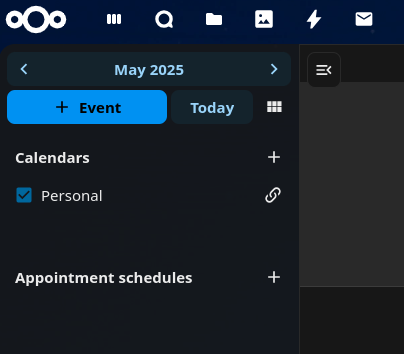
In Nextcloud Calendar, hover over the link icon to the right of the calendar in question, e.g. Personal, and you see an edit icon. Click the edit icon:
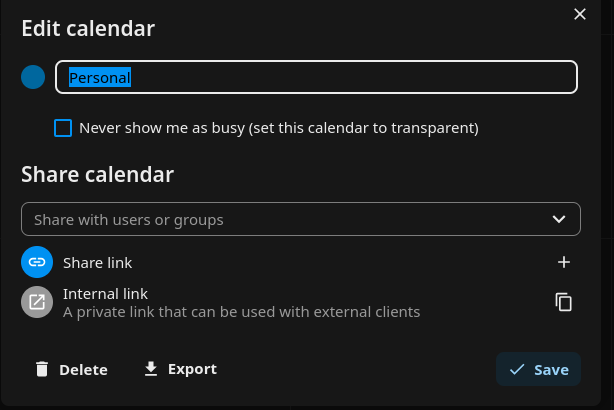
You'll see a pop-up like the following. You will want to click the + for "Share link" and then clck the resulting clipboard icon that copies the link to the clipboard:
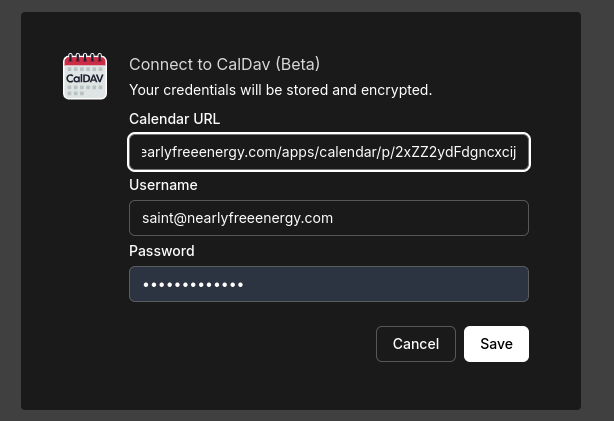
Then, you'll want to go to your Cal.com pop-up for configuring CalDav and paste the link:
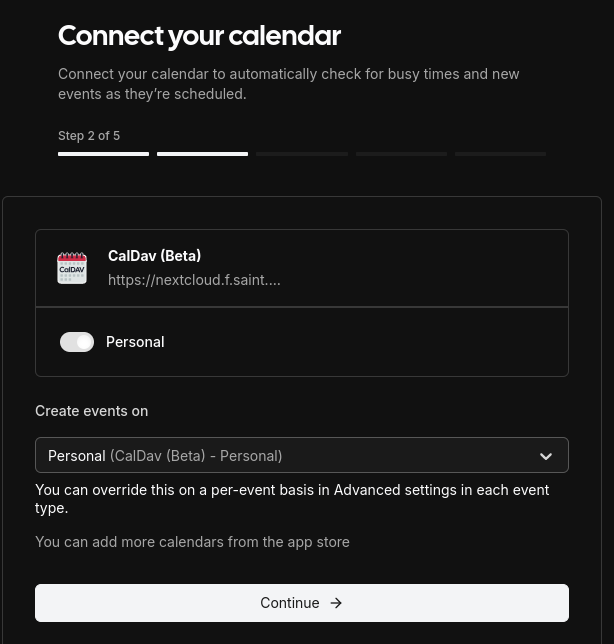
Then continue the process of connecting to your Nextcloud calendar via CalDav, confirming event creation:
Complete the remaining steps. You can leave video settings for later. Confirm your availability times. Add a profile photo / avatar.